Groups
Check which IAM groups you or another user belong to, which roles each group grants and, if you have edit permission, attach roles to a group or detach them.
Check your IAM groups
- In the side menu, open AuthN › Groups. The Groups tab opens.
- The IAM Groups of: table shows your user’s groups, with their roles.
- Expand a row with › to see the group’s ID, name, email, other aliases and direct members.
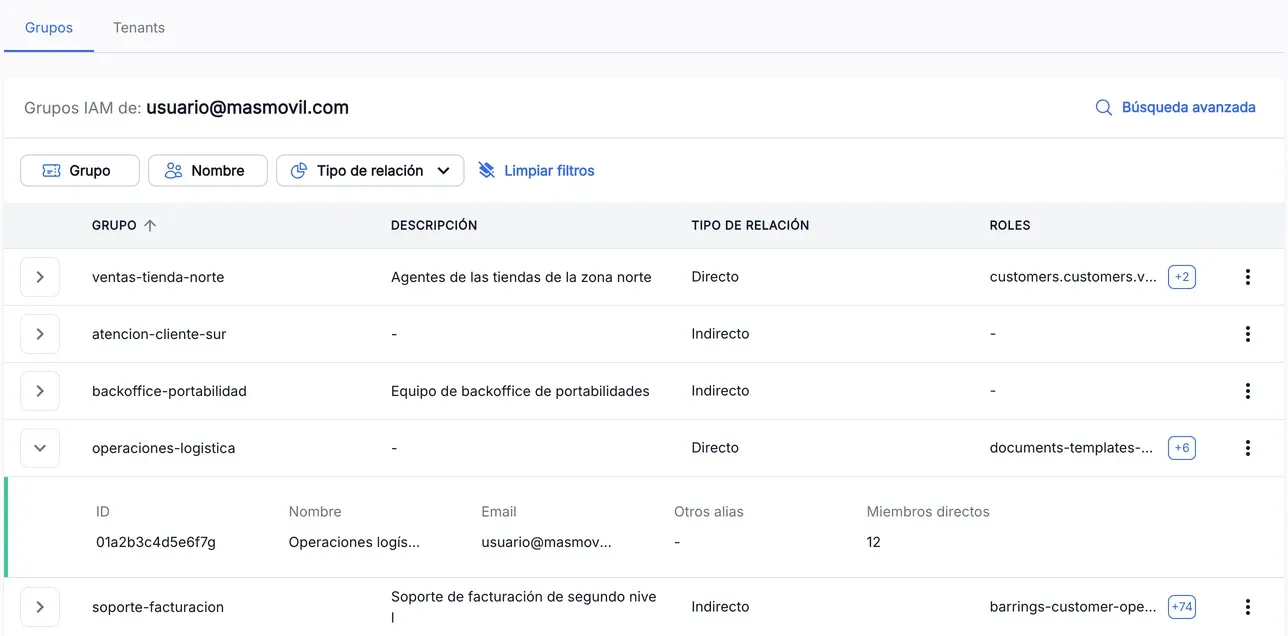
To narrow the list, use the Group, Name and Relation type filters, and Clear filters to remove them. In the ROLES column, +N means the group has more roles than fit.
Search for a group or another user’s groups
- Press Advanced search.
- In Search type, choose BY IAM GROUP or BY USER.
- Type the group name in Search IAM group, or the user’s email in Search by IAM user email.
- Press Search.
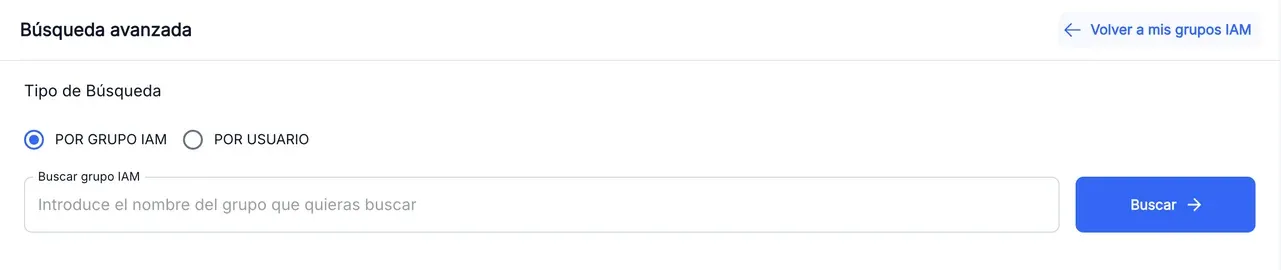
To go back to your list, press Back to my IAM groups. The search stays in the page address, so you can share the link.
Attach or detach roles
- Open the ⋮ menu of the group’s row and choose Attach roles.
- In ATTACH ROLES, the left column lists the available roles and the right one, ATTACHED ROLES, the roles the group already has. Each column splits APPLICATION and DOMAIN roles.
- Look for the role in Search roles.
- Press ⊕ next to a role to attach it, or ⊖ in the right column to detach it.
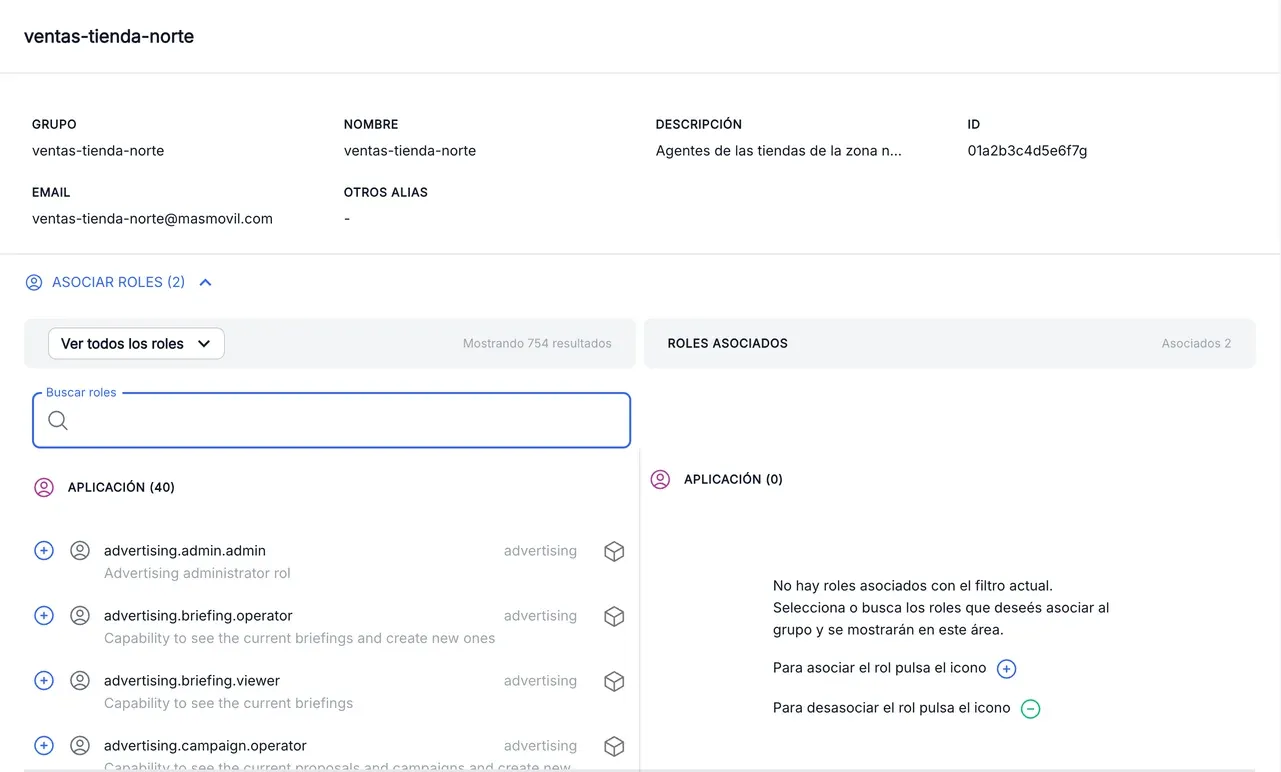
Each change is saved at once: there is no save button. You see “The role … has been attached” or “The role … has been detached”.
To copy the roles of another group, open View all roles and choose that group: the left column then shows only its roles.
Without admin.authn_groups.write, the ⋮ menu shows View group, which opens the same screen read-only, with the attached roles only.
The screenshots show the Admin interface in Spanish.
When something is not as expected
| You see | What it means and what to do |
|---|---|
| No Advanced search | You lack the admin.authn_groups.search permission. |
| No BY USER | You lack the admin.authn_groups.searchbyuser permission. |
| ”Email format not valid” | The email is incomplete or misspelt. Check it and press Search again. |
| ”No results found” | You have not searched yet, or no group matches. Type another term and press Search. |
| A warning icon in the ROLES column | The roles of that group could not be loaded. Press the icon to retry. |
| ”Selected group not found” | The edit link is not valid. Go back to the list and open the group from its ⋮ menu. |
Reference
Table columns:
| Column | What it is |
|---|---|
| GROUP | Name of the IAM group. |
| DESCRIPTION | Description of the group, or - if it has none. |
| RELATION TYPE | Direct, Indirect or Direct and indirect. |
| ROLES | Roles attached to the group. +N shows how many more. |
Row detail: ID, Name, Email, Other aliases and Direct members.
Group data on the assignment screen: GROUP, NAME, DESCRIPTION, ID, EMAIL and OTHER ALIASES.