Masks
Check the barring masks available in the tenant and the network services each one affects. It is a read-only screen: it changes nothing.
Find a mask
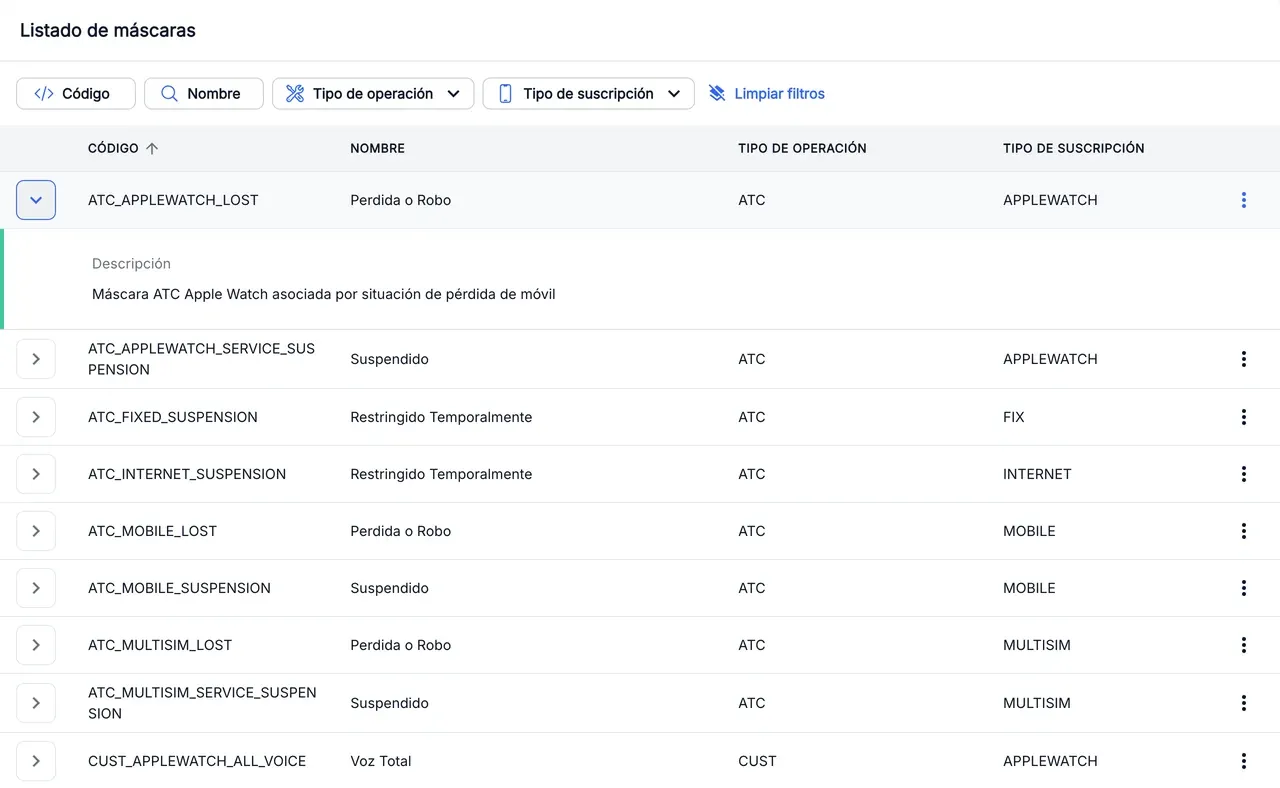
- Open Masks. The Masks list table is sorted by Code.
- Filter by Code or Name by typing part of the text, or by Operation type and Subscription type by ticking one or more values.
- Expand a row with › to read the mask’s Description.
See a mask’s detail
- In the mask’s row, open the ⋮ menu and press View detail.
- General data shows the code, name, operation type, subscription type and description.
- In the Services tab, the Affected network services table lists the mask’s services. You can filter them by Code and Description.
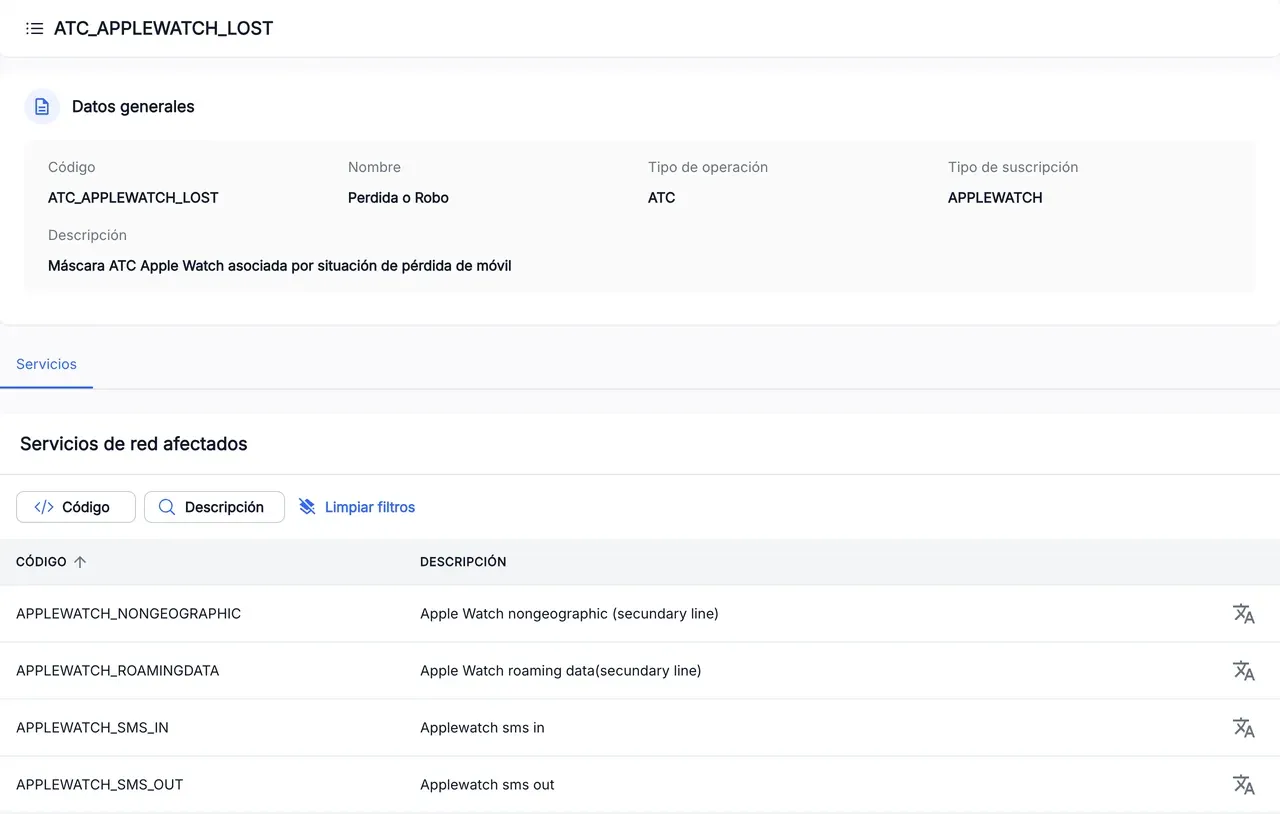
The screenshots show the Admin interface in Spanish.
When something is not as expected
| You see | What it means and what to do |
|---|---|
| The list is empty | The selected tenant has no masks. Check the tenant in the Admin header. |
| ”Mask not found” | The mask in the link does not exist in the selected tenant. Go back to the list and find it there. |
| ”This mask has no associated services” | The mask does not affect any network service. |
Reference
List columns
| Column | What it is |
|---|---|
| Code | The mask’s identifier, for example CUST_MOBILE_OUTGOING_SMS. |
| Name | The mask’s descriptive name. |
| Operation type | The mask’s area: CUST, DEBT, ATC or RISK. |
| Subscription type | The product it applies to, for example MOBILE. |
Affected network services columns: the service’s code and description.