Massive invoices
Apply billing adjustments to many accounts or subscriptions at once from a CSV file, and follow the result row by row. The adjustments are sent from your browser: keep the window open until the process finishes.
Open Massive invoices in Admin →
Prepare the CSV file
Each file holds adjustments of one type only: to accounts or to subscriptions. The upload screen has an empty template for each: Download account adjustment template and Download subscription adjustment template.
| Column | What it is |
|---|---|
account_id or subscription_id | The account’s or the subscription’s identifier. The file has one of the two, by adjustment type. |
date | The adjustment date in DD/MM/YYYY format, for example 15/03/2026. |
amount | The adjustment amount, with a decimal point, for example 12.50. |
movtype_id | The identifier of the transaction type in Billing. |
tenant | The account’s or subscription’s tenant, for example masmovil. Upper or lower case does not matter. |
description | The adjustment’s description. |
subscription_id,date,amount,movtype_id,tenant,description
000000001,15/03/2026,12.50,1,masmovil,Sample adjustment
000000002,15/03/2026,8.00,1,masmovil,Sample adjustment- The separator can be a comma (
,) or a semicolon (;). - Upper or lower case does not matter in column names.
- Empty rows are ignored.
Two rows equal in tenant, identifier, date, amount, transaction type and description, sent with the same amount type, are the same adjustment: Billing applies it only once and the repeat shows as Already applied. So you can upload a file again after a failure without duplicating the adjustments already applied, as long as you do not change those rows.
Upload the file
- In CSV file load, drag the file or press Click or drag here to upload a file. .csv files of up to 10 MB are accepted.
- When “The file has been loaded successfully” shows, press Continue. A window opens with the file name.
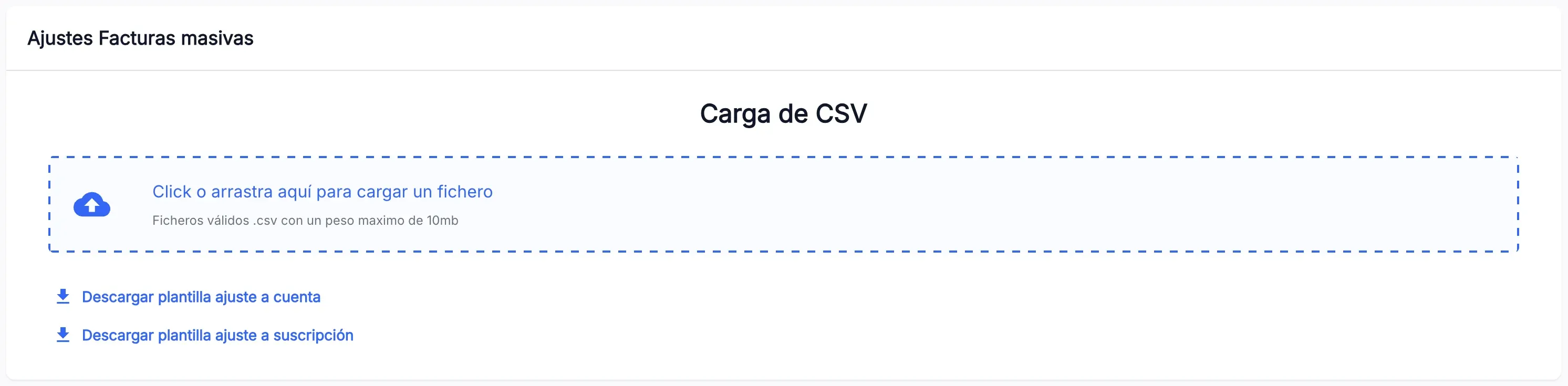
If the file has a problem, a red message shows under its name. Press Cancel, fix the file and upload it again.
Apply the adjustments
- In Adjustment type, pick Account adjustment or Subscription adjustment, matching the file.
- In Amount type, keep Without taxes or pick With taxes, depending on what the file’s amount represents.
- Check the table. Records: shows the total of rows and the footer reads “Adjustments will be applied to N elements”.
- Press Start. Each row changes its status icon and the footer shows the progress and the Applied and Errors figures.
- When the footer shows the result, press Finish.
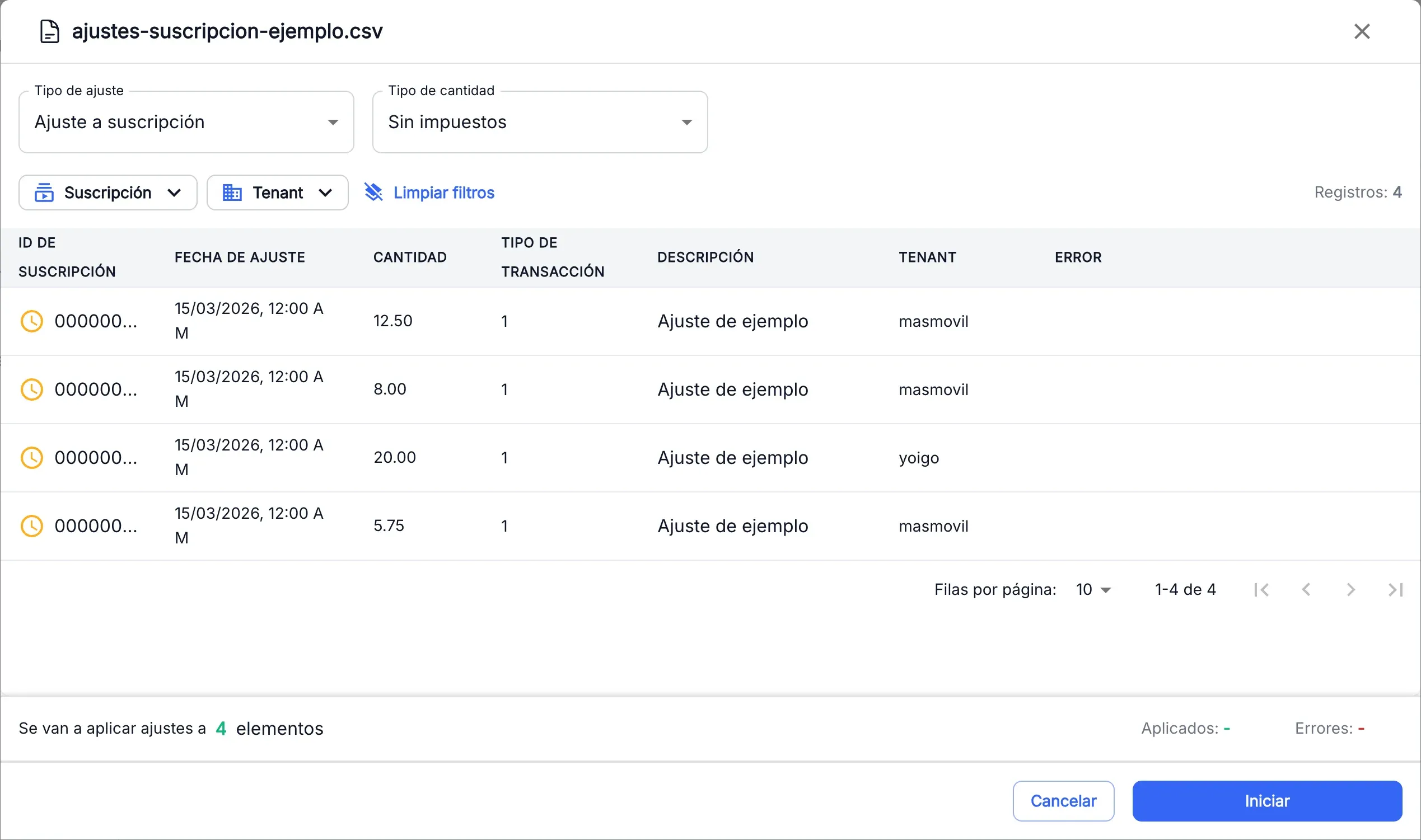
The screenshots show the Admin interface in Spanish.
The Account or Subscription and Tenant filters only change the rows you see. Start applies the adjustments of every row in the file.
The process sends at most 300 adjustments per minute, so a file of 3,000 rows takes at least 10 minutes. Pause stops the sending and Resume continues it.
Download the error report
When you press Finish, or leave a process that has started, massive-invoices_errors.csv downloads with the rows that were not applied. If every row was applied, nothing downloads.
The report has the original file’s columns and two more:
| Column | What it is |
|---|---|
status | FAILED if Billing rejected it, NOT_ATTEMPTED if it was never sent and IN_PROGRESS if it was being sent on exit. |
error | The row’s error message, if any. |
Fix the rows and upload the report as a new file: the added columns do not affect the upload.
Leave before it finishes
- Press Cancel or close the window. The process pauses and “Are you sure you want to exit the massive invoicing process?” shows.
- Press Yes to leave. If the process had started, the error report downloads. Press No to carry on where you were.
Rows that were never sent are not applied.
When something is not as expected
| You see | What it means and what to do |
|---|---|
| ”Errors have been found in the column format. Please verify that the file header is…” | A column is missing. The file needs account_id or subscription_id, not both, and the rest of the template’s columns. |
| ”File must use commas (,) or semicolons (;) as separator…” | The file uses another separator, such as a tab or a pipe. Save it again as a comma-separated CSV. |
| ”The file is empty” | The file has no rows with data. |
| ”The file does not have a valid .csv format” | The file cannot be read as CSV, or a row has neither an identifier nor an amount. |
| ”Incompatible adjustment type” | The chosen Adjustment type does not match the file’s identifier column. Close the notice and pick the other type. |
| You press Start and nothing happens | A date is not in DD/MM/YYYY format, with two digits for day and month. Fix the file and upload it again. |
| ”Only postpaid subscriptions allow adjustments” | The subscription is prepaid. Remove that row. |
| ”Adjustment date is outside the active subscription period” | The date falls outside the period when the subscription was active. Fix the date. |
| ”Account is inactive for the specified date” | The account was not active on that date. Fix the date or remove the row. |
| ”Subscription does not exist or was deleted” | The identifier matches no subscription of that tenant. Check the identifier and the tenant. |
| ”The specified transaction type does not exist” or “Transaction type is required” | Check the movtype_id value. |
| ”Amount without taxes must be greater than 0” or “Must specify at least one amount value” | Check the row’s amount. |
| ”Adjustment data is incorrect. Please verify the format” | Billing rejected the row. Check its values. |
| ”Request limit exceeded. Relaunch the failed rows later” | Billing received too many requests. Upload the error report later. |
| ”An internal error has occurred…” or “Communication error with external services…” | A temporary service failure. Upload the error report in a few minutes. |
| ”You do not have permission to perform this operation…” or “Your user profile does not have access to this…” | Your user cannot apply adjustments. Ask for the admin.billingMassiveInvoices.write permission. |
Reference
Table columns
| Column | What it is |
|---|---|
| Account ID or Subscription ID | The row’s identifier, with its status icon. |
| Adjustment Date | The date from the date column. |
| Amount | The amount that will be sent, with two decimals. |
| Transaction Type ID | The movtype_id value. |
| Description | The description. If it does not fit, hover over it to see it whole. |
| Tenant | The row’s tenant. |
| Error | Why the row was not applied. |
Row statuses
| Icon | What it means |
|---|---|
| Orange clock | Not sent yet. |
| Spinner | Being sent. |
| Green tick | Adjustment applied. |
| Blue double tick with Already applied | Billing already had that adjustment and did not apply it again. Counts as applied. |
| Red cross | The row failed. The reason is in the Error column. |