Bulk operations
Apply or remove barring masks on many subscriptions at once from a CSV file, and follow the result of each load.
Open Bulk operations in Admin →
See the operations
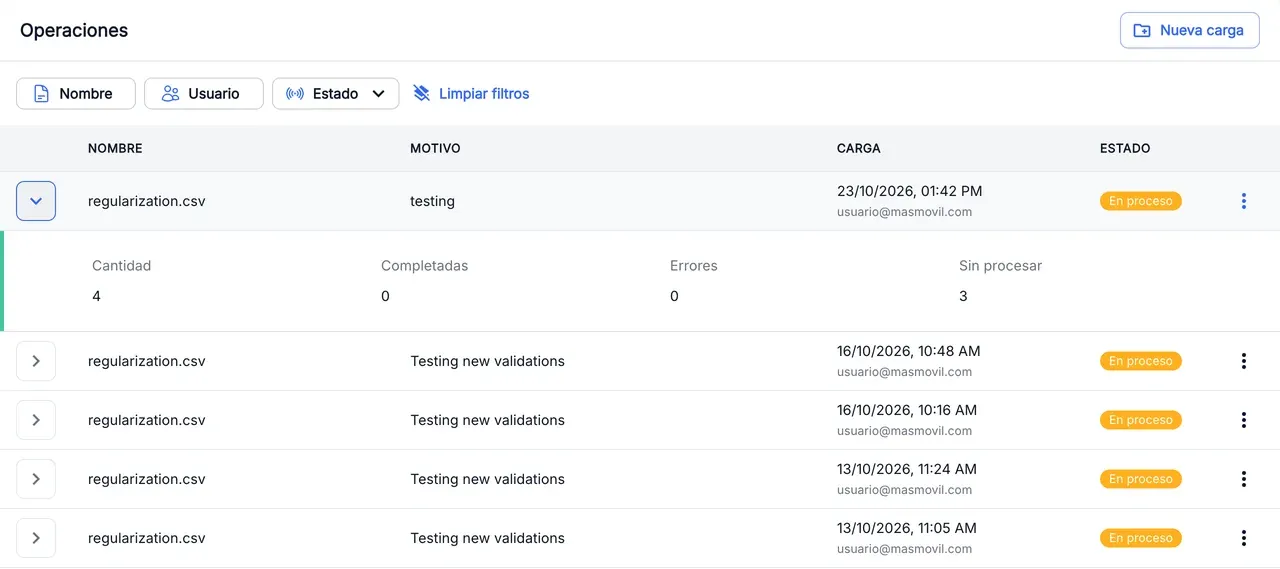
The Operations table shows one row per load, newest first: the file name, the reason, the date and the user who launched it, and the status. The list refreshes by itself every minute.
- Filter by file Name, by User or by Status.
- Expand a row with › to see how many subscriptions the load has and how many are completed, failed or unprocessed.
- To see each subscription, open the row’s ⋮ menu and press View detail.
See an operation’s detail
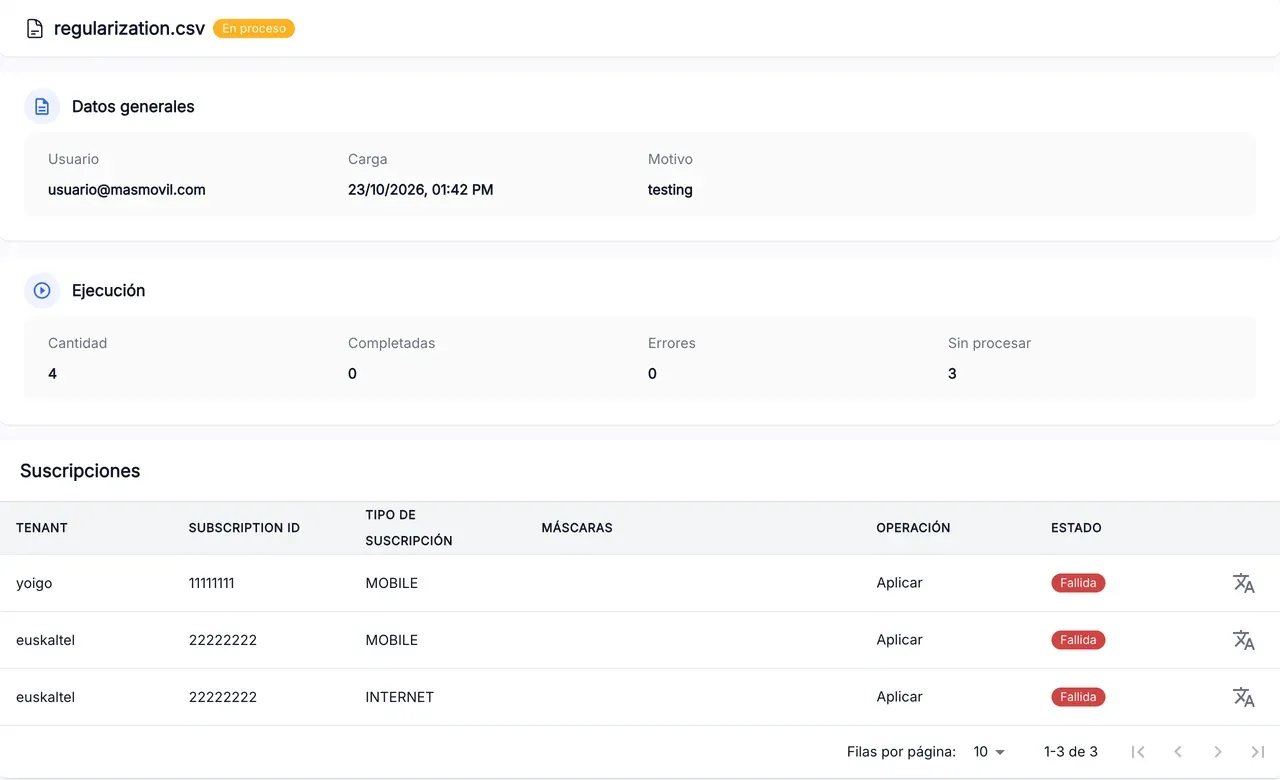
Under the file name and its status, the detail shows:
- General data: the user, the load date and the reason.
- Execution: the Quantity, Completed, Errors and Unprocessed figures.
- Subscriptions: one row per subscription, with its tenant, its identifier, the subscription type, the masks, the operation and that subscription’s status.
Prepare the CSV file
The file lists the subscriptions the load applies to, with two columns:
| Column | What it is |
|---|---|
tenant | The subscription’s tenant, for example masmovil. Upper or lower case does not matter. |
subscriptionId | The subscription’s identifier. |
tenant,subscriptionId
masmovil,000000001
masmovil,000000002- Press Download CSV template in New load to get an empty file with those columns.
- Every row needs a tenant and a subscription, and each tenant must be one your user can use in Admin.
- The subscription type, the masks and the operation are not in the file: you choose them when you create the load and they apply the same to every row.
Create a load
- Press New load. New masks load opens above the table.
- Drag the file or press Click or drag here to upload a file. .csv files of up to 10 MB are accepted.
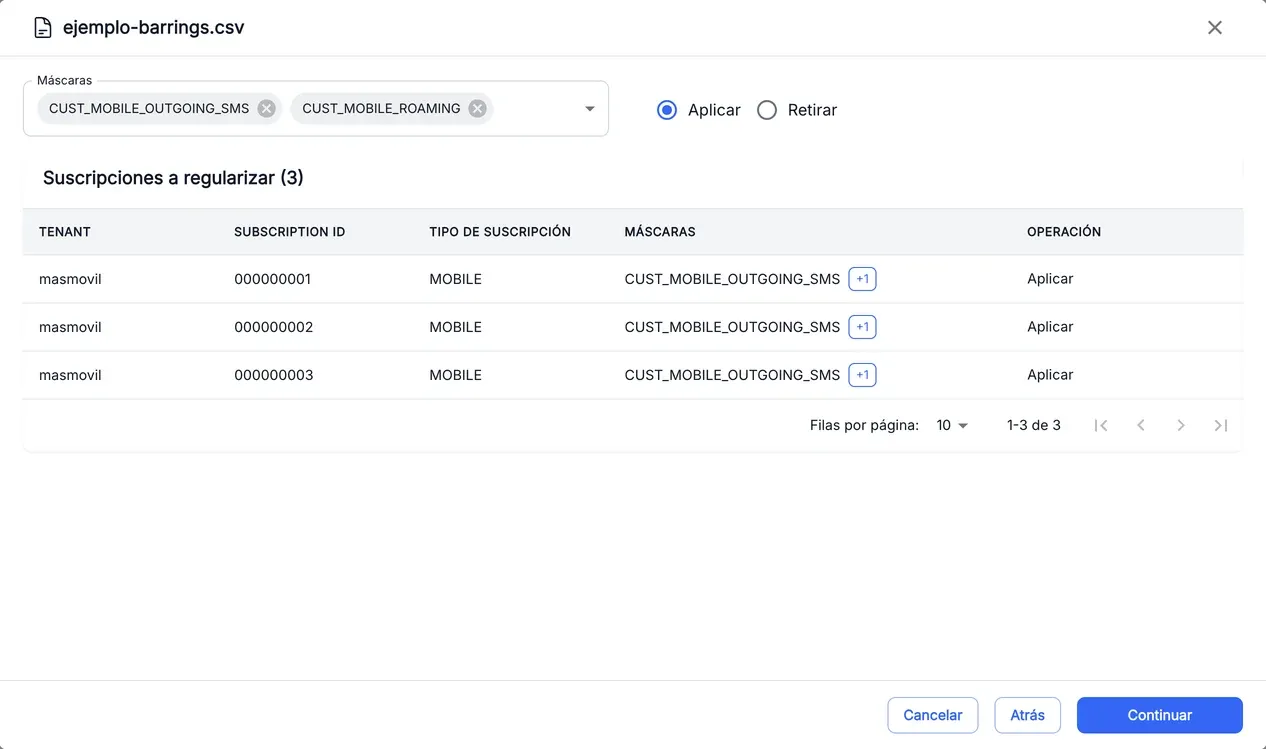
- When “The file has been loaded correctly” shows, press Continue. A window opens with the file name.
- In Select area, pick the area. Then, in Select subscription type, pick the type and press Continue.
- In Masks, pick one or more masks and tick Apply or Remove. The Subscriptions to regularize table shows how each row will be sent.
- Press Continue. In Confirm load, check the summary and write the Regularization reason. It is required.
- Press Send load. You will see “Load sent” and the Load in progress notice.
The load takes a few minutes to show in the list. Meanwhile, the Load in progress notice stays visible, also if you reload the page, until the load shows or 24 hours pass.
Back returns to the previous step without losing the file. Cancel discards the file and closes the load.
The screenshots show the Admin interface in Spanish.
When something is not as expected
| You see | What it means and what to do |
|---|---|
| ”Formatting errors have been found. Columns [tenant] and [subscriptionId] were expected” | The file is empty, lacks those columns, or a row has no tenant or subscription. Fix it and upload it again. |
| ”Unknown tenant in lines: …” | Those lines have a tenant your user cannot use. Line 1 is the header. Fix the tenant or remove the lines. |
| ”Masks permissions not available” | There are no masks you can use for that area and subscription type, and you cannot continue. Pick another combination. |
| ”The file or the reason are not valid for Barrings” | Barrings rejected the load. Check the file and the reason and send it again. |
| ”You are not allowed to launch regularizations” | Your user cannot create loads. Ask for the admin.barringsOperations.write permission. |
| ”The load could not be sent. Please try again” | The service could not be reached. The window stays open: press Send load again in a few seconds. |
| You do not see the New load button | You lack the admin.barringsOperations.write permission. |
Reference
Statuses of an operation and of each subscription
| Status | Colour | What it means |
|---|---|---|
| Pending | Grey | It has not started yet. |
| Processing | Orange | It is being processed. |
| Completed | Green | It has finished. |
| Failed | Red | It has finished with an error. |
Execution figures
| Figure | What it is |
|---|---|
| Quantity | Subscriptions included in the load. |
| Completed | Subscriptions processed successfully. |
| Errors | Subscriptions that failed. |
| Unprocessed | Subscriptions not processed yet. |