Commercial offer
Look up the device offer, commercial bundles, commercial products, promotions and free units packages of a tenant.
Look up what can be sold in the selected tenant: the device offer, commercial bundles, commercial products, promotions and free units packages. Each one is in a tab. The screen is read-only: it changes nothing.
Open Commercial offer in Admin →
Find the offer of a device
The Devices tab shows one row per device offer: the same device appears once for each set of sale terms it has.
- Open the Devices tab.
- Filter by Device ID, Name, Model, Colour or Category, and narrow the offer with Commercial profile, Segment, Payment type, Numeration type, Sale type or another filter.
- Expand a row with › to see the price, payment method, permanences, return commitments, promotions and commercial profiles of that offer.
- To see the device record, open the row menu and press View detail. It opens in a new window, in the Devices section.
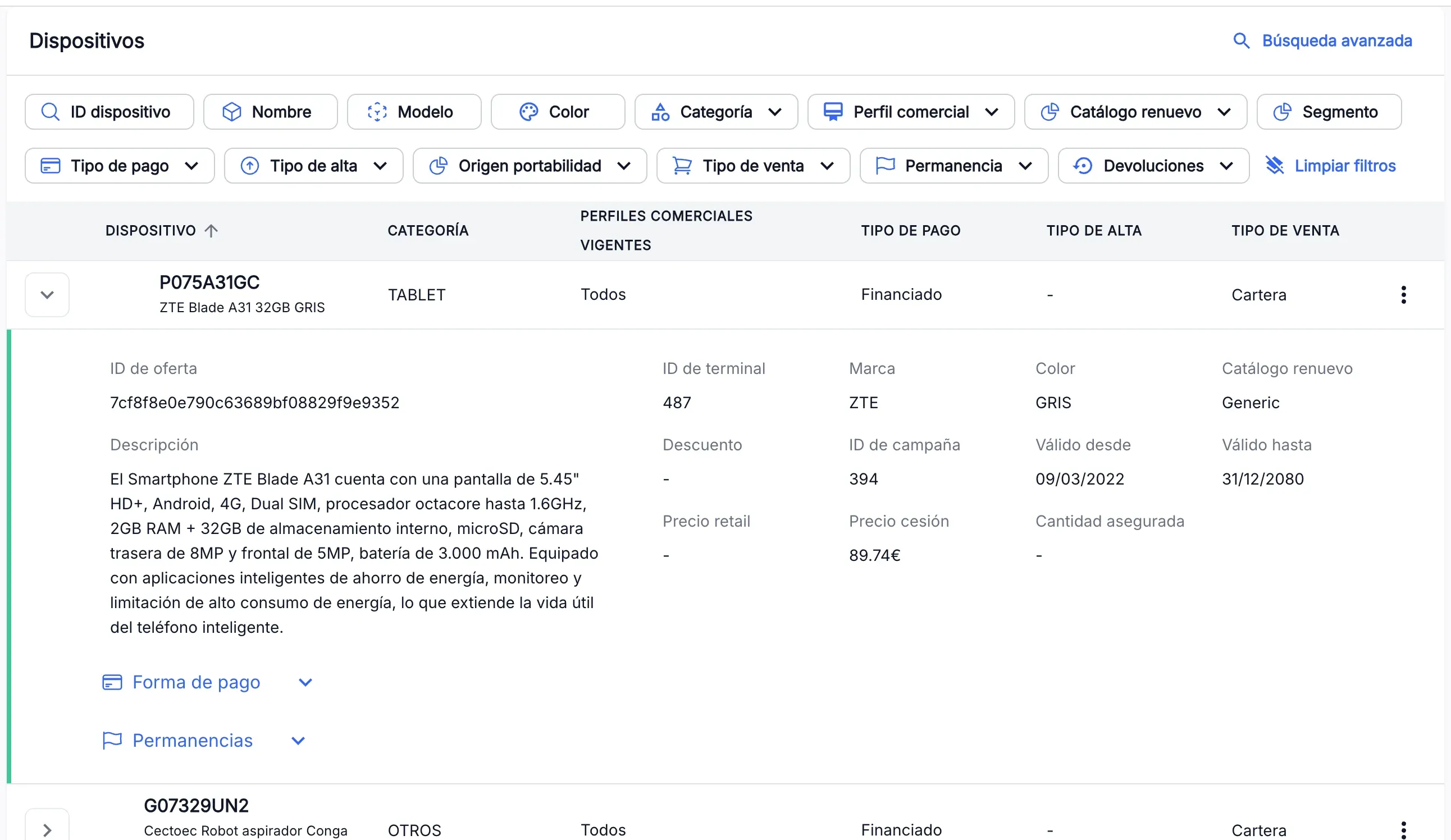
Advanced search lets you search by another criterion. Pick the Type of query, type the ID and press Search:
- By commercial device: one specific offer, by its ID.
- By bundle commercial product: the devices that can be sold with a product of a bundle.
- By commercial product: the devices that can be sold with a commercial product.
Look up a commercial bundle
-
Open the Commercial bundles tab and find the bundle with the filters, or press Advanced search and search by its ID.
-
Open the row menu and press View detail.
-
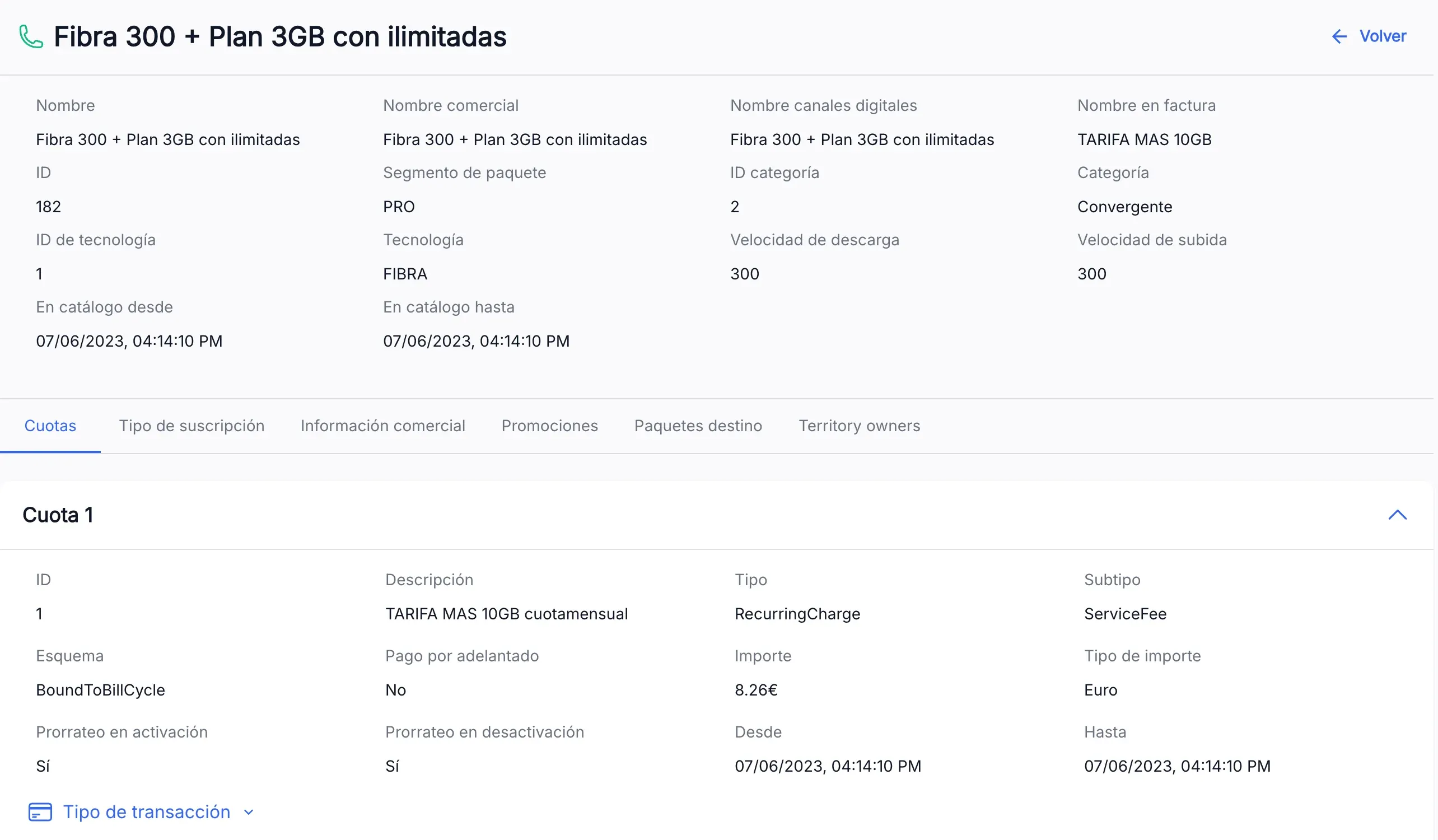
The detail shows the bundle data (name, category, technology and speeds) and these tabs:
Tab What it shows Fees The bundle fees, with their transaction type and permanence. Subscription type The bundle subscription types and, in each one, its commercial products. Commercial information The commercial and invoice texts in each language. Promotions The promotions that apply to the bundle. Target bundles The bundles it can change to, and whether the change is manual or automatic. Territory owners The network operators the bundle is offered with.
See a product inside a bundle
A commercial product inside a bundle has its own terms: whether it is mandatory, how many can be added and whether it is the main, additional or extra line.
- In the bundle detail, open the Subscription type tab and expand Commercial products in the type you want.
- Open the menu of a product and press View detail.
- The detail shows its terms in the bundle and its tabs: Fees, Promotions, SVAs, Target bundled products and Equivalence by targered product bundled.
- Press View commercial product to open the commercial product it contains.
In Equivalence by targered product bundled, type the ID of a bundle and press Search to see which product of that bundle this one is equivalent to.
Look up a commercial product
-
Open the Commercial products tab and find the product with the filters, or press Advanced search and search by its ID.
-
Expand the row to see a summary: its fees, its promotions and the Included free units packages.
-
To see all of it, open the row menu and press View detail. The detail has these tabs:
Tab What it shows Fees The product fees, with their transaction type and permanence. Commercial information The commercial and invoice texts in each language. Promotions The promotions that can apply to the product. Free units packages The product’s packages: capacity, amount, and whether they are included or recurring. SVAs The product’s value-added services and their fees. Target commercial products The products it can change to. Base profiles The product’s technical network profiles and their services. Rate plans The product’s rating plans.
From the Promotions and Free units packages tabs, View detail opens that promotion or package.
Look up a promotion
- Open the Promotions tab and filter by Name, Commercial profile, Promotion type, Numeration type, Sale type, Type of customer or Effective date.
- Expand the row to see its priority, its applicability and calculation rules, its transaction type and its permanences.
- To see the detail, open the row menu and press View detail. The More information tab shows, among other things, Needs promotion code and Xsell permit.
Look up a free units package
- Open the Free units packages tab and filter by Name, Type, Commercial profile or Effective date.
- Expand the row to see its template, its applicability priority and its home and roaming volumes.
- To see the detail, open the row menu and press View detail.
The screenshots show the Admin interface in Spanish.
When something is not as expected
| You see | What it means and what to do |
|---|---|
| ”You have not performed any search yet” | You opened Advanced search without an ID. Type it and press Search. |
| ”No results found” | No offer matches the filters, or the ID does not exist in the tenant. Check the header tenant and the filters. |
| ”The commercial bundle for the selected tenant not found” | The bundle does not exist in the header tenant. Check the tenant and the ID. |
| ”Commercial product not found for the selected tenant” | The product does not exist in the header tenant. Check the tenant and the ID. |
| ”Promotion not found” | The promotion does not exist in the header tenant. |
| ”Free unit package not found for the selected tenant” | The package does not exist in the header tenant. |
| ”An unexpected error has occurred” | The service could not be reached. If Retry appears, press it; otherwise reload the page in a few seconds. |
| You do not see Commercial offer in the menu | You do not have read permission for this section. Ask whoever manages your access. |
Reference
Device offer columns
| Column | What it is |
|---|---|
| Device | Image, ID, name and model of the device. |
| Category | Kind of device, for example SMARTPHONE. |
| Current commercial profiles | Profiles in which the offer is valid today. All if it has no profile; None if its profiles are no longer valid. |
| Payment type | Upfront payment or Financed. |
| Numeration type | Numeration types it is offered for. |
| Sale type | Sale types it is offered for. |
Payment method of a financed offer
When you expand a financed offer, Payment method shows the number of instalments, the initial payment, the monthly instalment, the final payment, the commission, the TIN and the APR.