Offer configuration
Look up the commercial profiles, transaction and subscription types, territory owners and base profiles of the catalogue.
Look up the configuration pieces the offer is built on: commercial profiles, transaction types, subscription types, territory owners and base profiles. Each one is in a tab. The screen is read-only: it changes nothing.
Open Offer configuration in Admin →
Search in a tab
Every tab shows a table with filters above it.
- Open the tab you need.
- Type or pick a value in one of the filters. The table is filtered at once.
- To go back to the full list, press Clear filters.
In Transaction types, Subscription types, Territory owners and Base profiles you can also find a record by its ID: press Advanced search, type the ID and press Search by ID. Back to list closes the search.
The active tab stays in the page address (?activeTab=…), so you can share a link to a specific tab.
Look up a commercial profile
A commercial profile groups the offer sold through a channel or to a type of customer.
- In the Commercial profiles tab, find the profile by ID or Profile.
- Open the row menu and press View detail.
- The detail shows the ID, the profile and the visibility type, and four tabs with the profile’s offer: Commercial bundles, Commercial products, Promotions and Free units packages. Each one shows from and until when it belongs to the profile.
- From each row, View detail opens that offer in Commercial offer. Commercial bundles and commercial products open in a new browser tab.
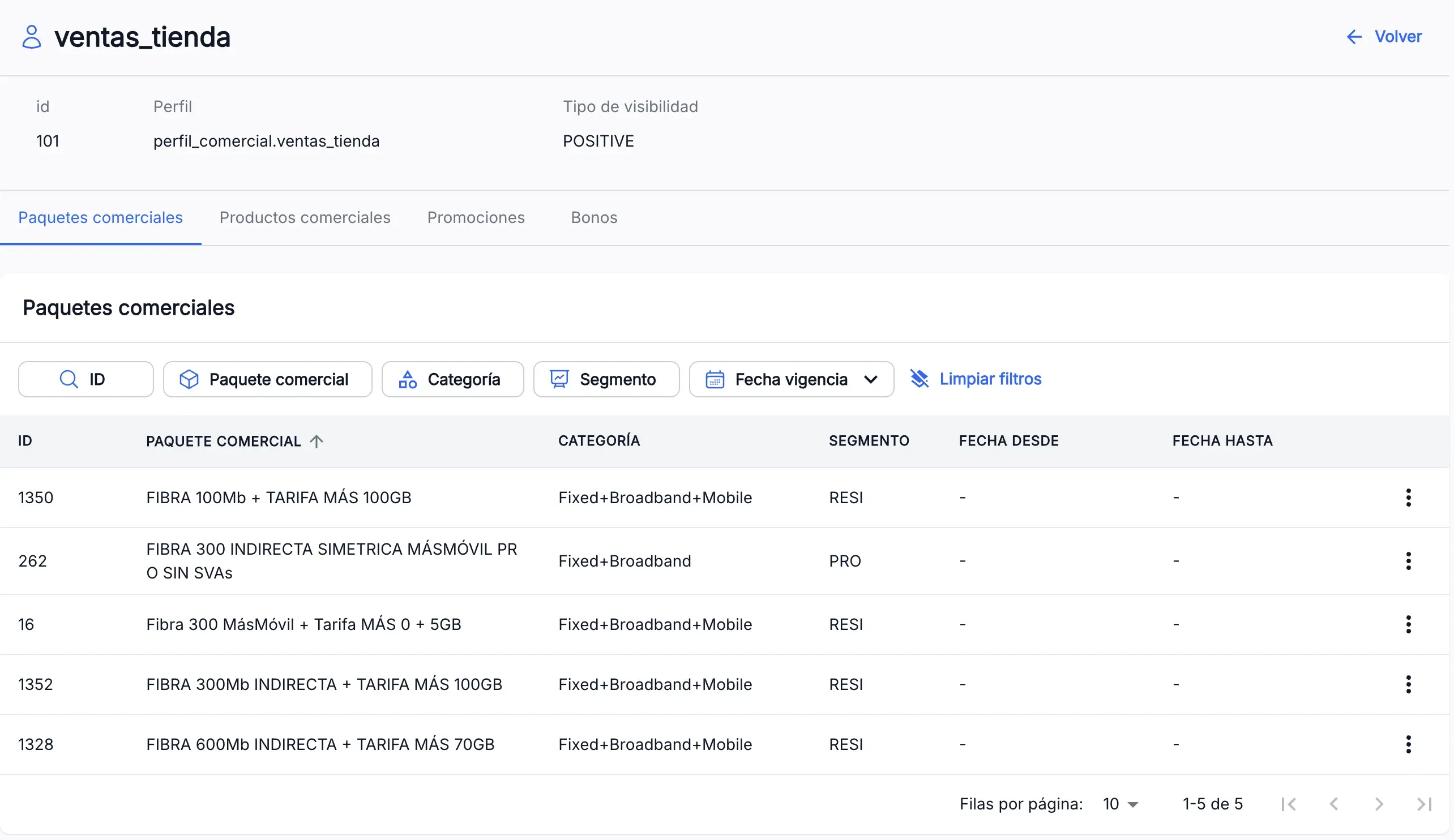
Effective date filters the offer that was in the profile at some point of the period you pick.
Look up the transaction types
The Transaction types tab lists the types used to classify the tenant’s charges and credits.
- Filter by ID, Name, Type, Active, Is external or Tax rate.
- Expand a row to see its ID, the description and the Refund ID, the transaction type used to refund it.
Look up the subscription types and territory owners
- Subscription types lists the types with their ID, name and description, for example postpaid or prepaid.
- Territory owners lists the network operators with their ID, name and the period they are in the catalogue. Effective date filters the ones that were in the catalogue during the period you pick.
Look up a base profile
A base profile describes the technical service behind a product: its network configuration, its speeds and the services it includes.
- In the Base profiles tab, find the profile by ID, Name or Effective date.
- Expand the row to see its technical data and, under Services, the services it includes.
- To see every service with filters, open the row menu and press View detail. In the detail, expand a service to see its description, network code and dates.
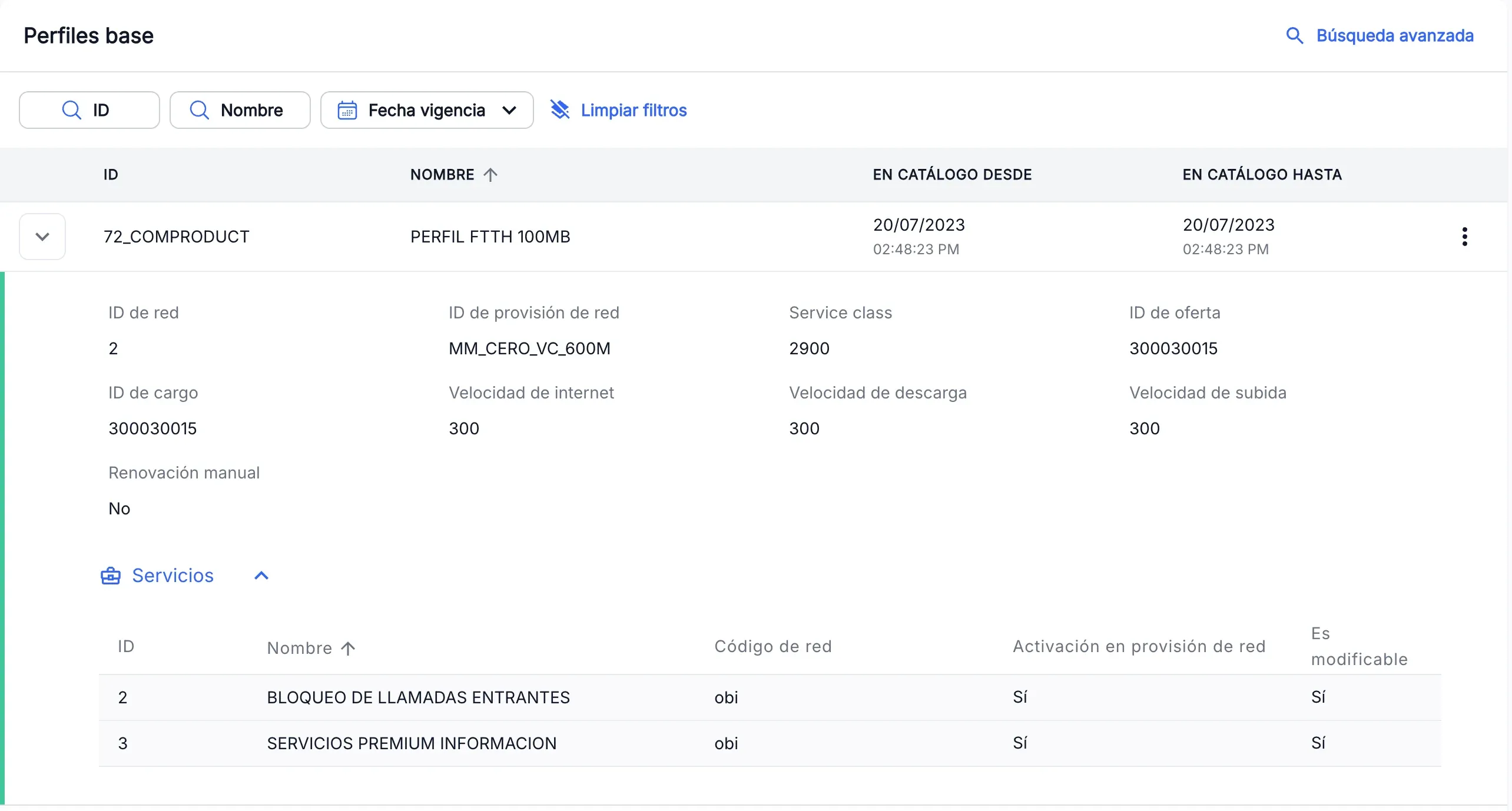
The screenshots show the Admin interface in Spanish.
When something is not as expected
| You see | What it means and what to do |
|---|---|
| ”No results found” | No record matches the filters, or the ID searched does not exist. Press Clear filters or check the ID. |
| ”The commercial profile for the selected tenant was not found” | The profile does not exist in the header tenant. Check the tenant and the ID. |
| ”The base profile for the selected tenant was not found” | The base profile does not exist or could not be loaded. Base profiles are shared by every tenant: check the ID. |
| ”An unexpected error has occurred” | The service could not be reached. If Retry appears, press it; otherwise reload the page in a few seconds. |
| You do not see Offer configuration in the menu | You do not have read permission for this section. Ask whoever manages your access. |
Reference
Base profile fields
| Field | What it is |
|---|---|
| Network ID | Identifier of the profile in the network. |
| Network provisioning ID | Profile used to provision the service in the network. |
| Service class, Offer ID, Charging ID | Technical identifiers; shown only when they have a value. |
| Internet speed, Download speed, Upload speed | Speeds of the service. |
| Manual renewal | Yes if the service is renewed manually. |
Service columns
| Column | What it is |
|---|---|
| Network Code | Code of the service in the network. |
| Activate on network provisioning | Yes if the service is activated on network provisioning. |
| Is changeable | Yes if the service can be changed. |