Campaigns
Define campaigns and the conditions that decide which dealers they apply to.
Define dealer campaigns and, if needed, the conditions that limit which dealers they can be assigned to. To assign an existing campaign to specific dealers, use the Campaigns tab in Dealers.
Search for campaigns
Filter by State (Active or Inactive), Commercial Profile, or Name.
Create a campaign
- Press Create.
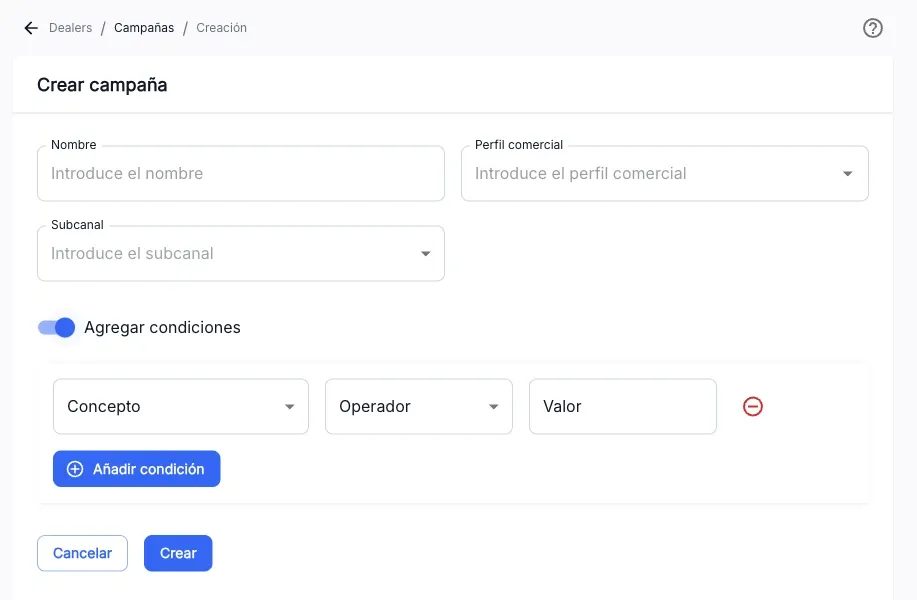
- Fill in Name, Commercial profile, and Subchannel.
- If the campaign should only apply under certain conditions, turn on Add conditions and press Add condition as many times as you need. Each condition has a Concept (Dealer Code, Parent Code, Province, or Segment), an Operator (In or Not in), and a Value.
- Press Create.
Edit a campaign
From a row’s ⋮ menu, Edit opens the same form with the campaign’s data to modify it.
Activate or deactivate a campaign
From a row’s ⋮ menu, Activate or Deactivate changes the campaign’s status. Deactivating a campaign unlinks it from the dealers that had it active.
The screenshots show the Admin interface in Spanish.
When something is not as expected
| You see | What it means and what to do |
|---|---|
| Create or Edit is not available | You lack write permission on this section. |
| ”A campaign with that name already exists” | The name you entered is already in use; choose another one. |
Reference
List columns
| Column | What it is |
|---|---|
| Name | The campaign’s name. |
| Commercial Profile | The associated commercial profile. |
| State | Active or Inactive. |
Condition concepts
Dealer Code, Parent Code, Province, Segment. Operators: In, Not in.