Special treatment
Maintain the special treatment catalogue and assign treatments to customers, one by one or in bulk.
Define which special treatments exist and which customers they apply to. The screen has two tabs: Catalogue, with the available treatments, and Assignments, with the customers that hold any.
Open Special treatment in Admin →
Look up the catalogue
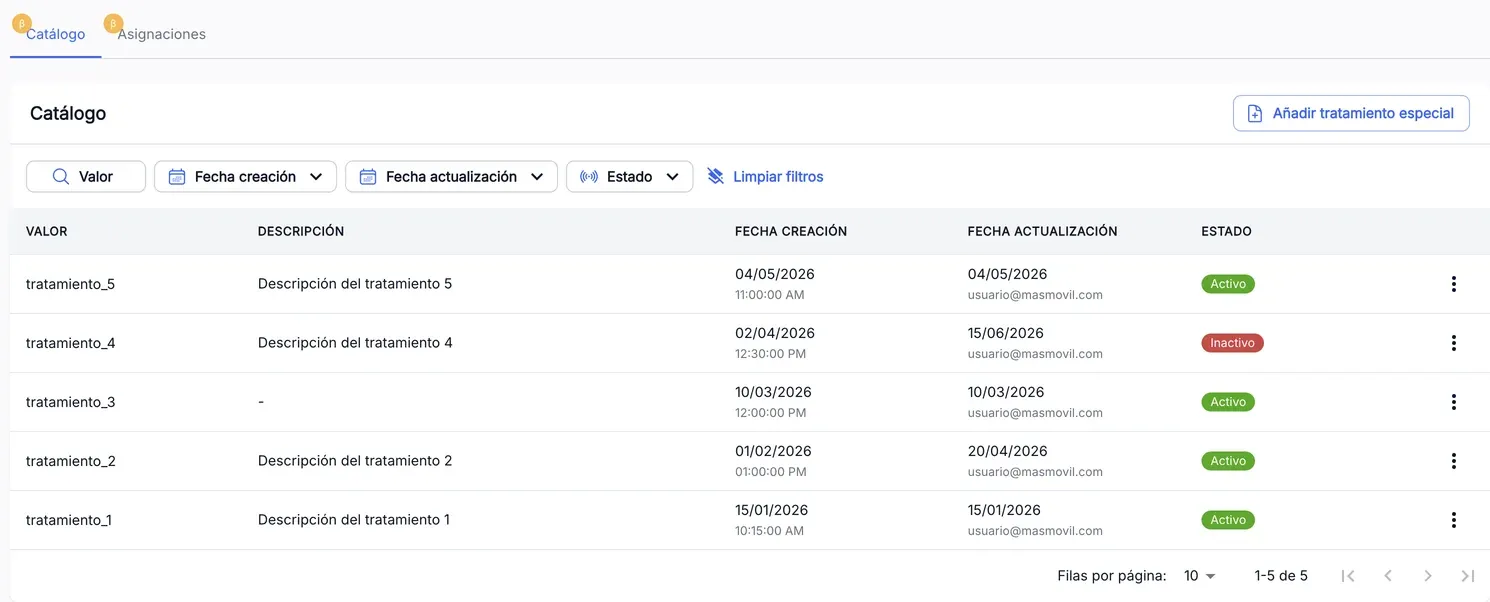
The Catalogue tab lists the special treatments with their Value, Description, Creation date, Update date (with the person who made the last change underneath) and Status. Filter by Value, by either date or by Status.
Add a special treatment
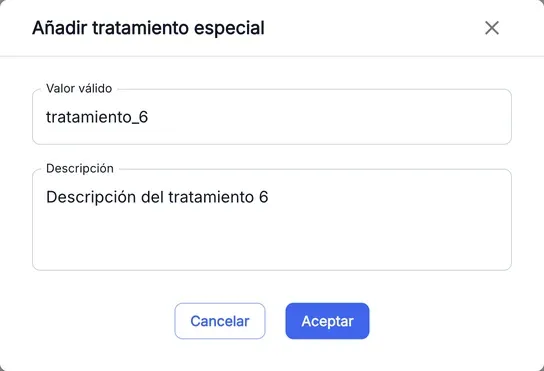
- In Catalogue, press Add special treatment.
- Enter the Valid value, up to 100 characters. It cannot match any value in the catalogue, inactive ones included.
- Enter a Description (optional), up to 500 characters.
- Press Accept.
The treatment is created active. The confirmation message has a button that filters the catalogue by the new value.
Edit, deactivate or reactivate a treatment
Open the treatment’s ⋮ menu:
| Option | When it appears | What it does |
|---|---|---|
| Edit | If the treatment is active | Changes the description. The value cannot be changed. |
| Deactivate | If the treatment is active | Asks for confirmation. It can no longer be assigned to new customers, but customers who already hold it keep it. |
| Reactivate | If it is inactive | Asks for confirmation. It can be assigned again, with the same identifier it had. |
Look up assignments
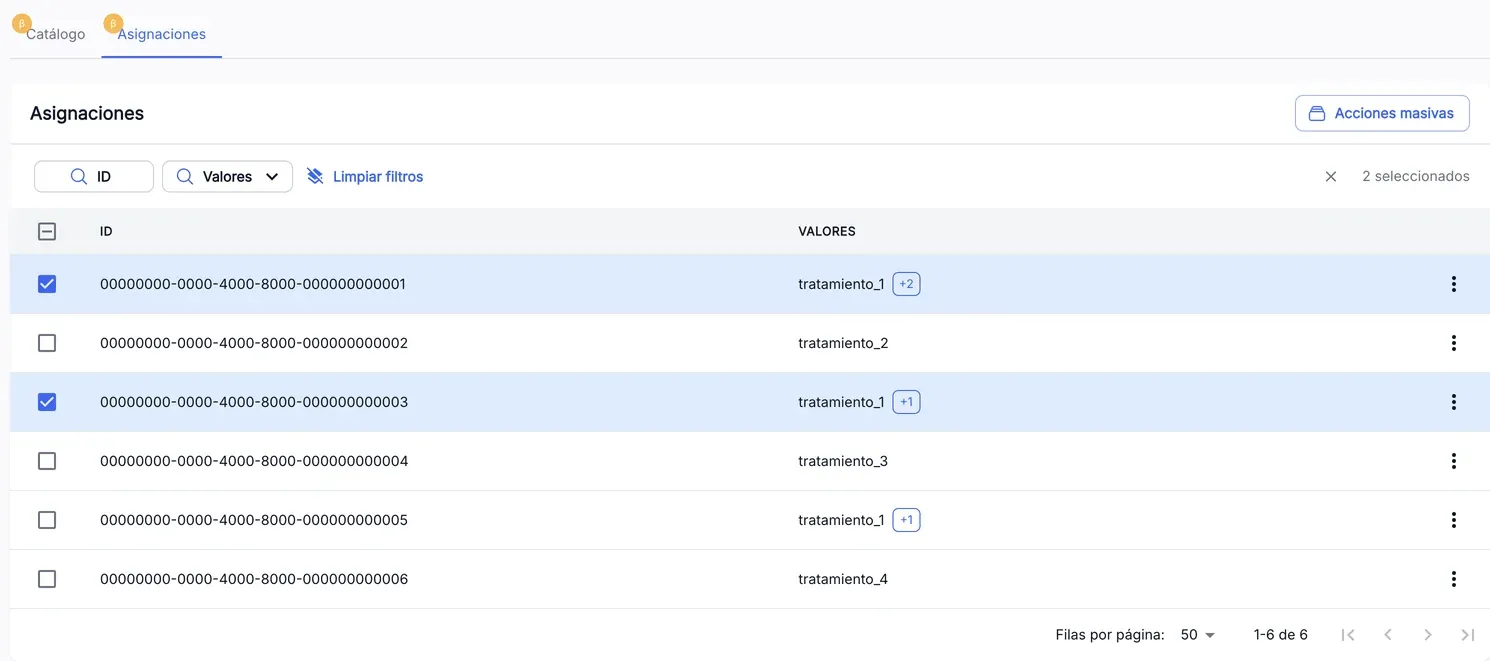
The Assignments tab lists the brand’s customers that hold any special treatment, 50 per page. Values shows the customer’s first treatment and, if they have more, a +N counter that expands them. A customer with no treatments shows -.
Search for customers
There are two filters, and applying one withdraws the other:
- ID: paste one or more customer identifiers separated by spaces. You can paste a column copied from a spreadsheet: line breaks become spaces. The number inside the field counts the identifiers. It applies when you stop typing or press Enter. If some do not match any customer, a notice above the table lists the ones not found.
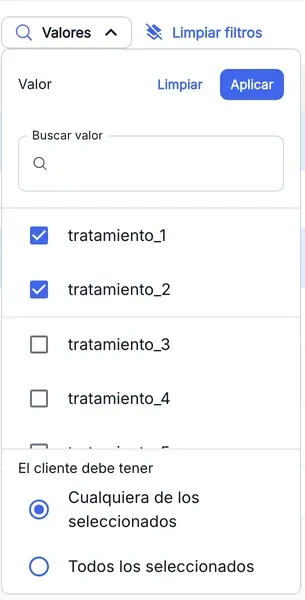
- Values: tick up to 100 treatments, choose in The customer must have whether Any of the selected is enough or All of the selected are needed, and press Apply. The list also includes inactive treatments, so you can find who still holds them.
Clear filters removes both.
Edit a customer’s treatments
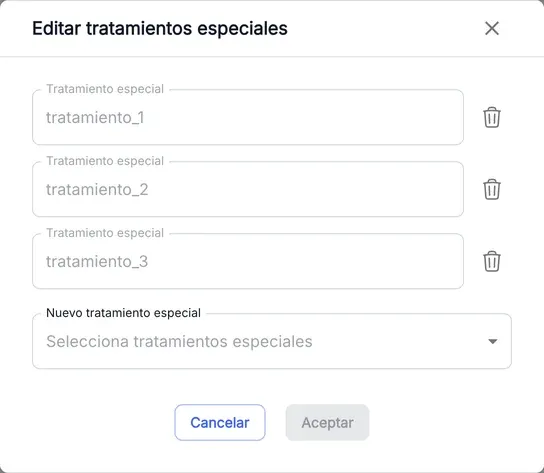
- Open the customer’s ⋮ menu and choose Edit. The treatments they hold right now are loaded.
- To remove one, press the bin icon on its row.
- To add, choose one or more in New special treatment. Only active treatments the customer does not hold appear.
- Press Accept. The button is enabled once there is a change.
The confirmation message has a button that filters the list by that customer.
Look up a customer’s history
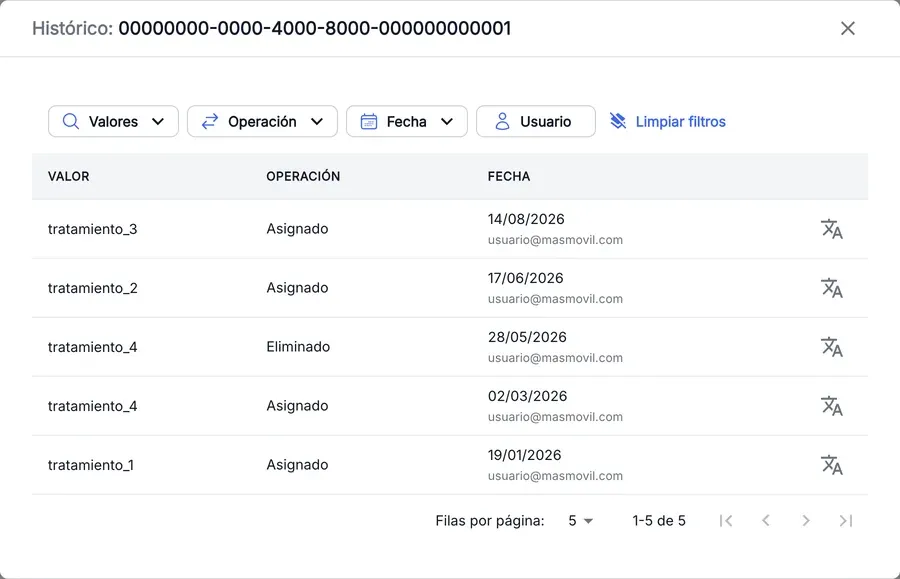
In the customer’s ⋮ menu, choose History. It opens the list of that customer’s changes, newest first: the treatment (Value), the Operation (Assigned or Removed) and the Date, with the person who made the change underneath. Filter by Values, Operation, Date or User.
Apply or remove treatments in bulk
-
In Assignments, tick the customers:
- a row’s checkbox selects that customer; with Shift held, it selects every row between the previous one and this one;
- the header checkbox selects every result of the filter, including those on other pages.
The number selected appears to the right of the filters, with an × to undo the selection.
-
Press Massive actions. If you selected every result and there are more than 200 customers, confirm with Continue.
-
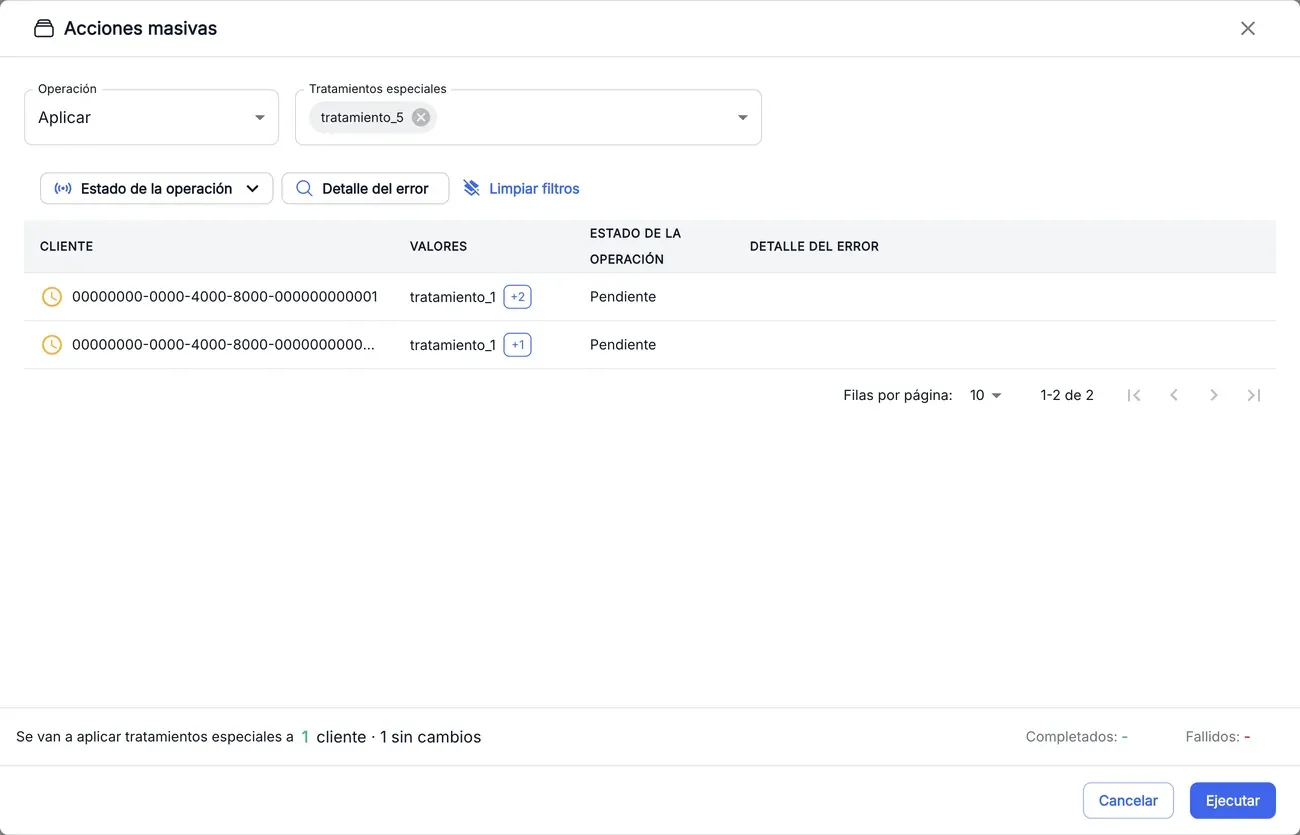
In Operation, choose Apply or Remove.
-
In Special treatments, choose one or more. To apply, only active ones appear; to remove, those held by at least one selected customer, marked “(Inactive)” if no longer active.
-
Check the panel footer. It says how many customers will be affected and how many stay unchanged because they already are as you ask.
-
Press Execute. Each customer’s Operation status changes to In progress… and then to Applied, Removed, Unchanged or Error.
-
When it ends, the footer sums up the changed, unchanged and failed customers:
- if everything went well, press Finish;
- if some failed, Retry failed repeats only those, and Download report saves a CSV with what was not completed.
The screenshots show the Admin interface in Spanish.
If you close the panel while it runs, the pending changes are not launched, but the ones already made stay. Closing the panel undoes the selection.
When something is not as expected
| You see | What it means and what to do |
|---|---|
| ”A value with that name already exists in the catalogue” | The value already exists, maybe inactive. Find it with the Status filter and reactivate it instead of creating another one. |
| ”Enter numeric customer ids or UUIDs, separated by spaces” | Some identifier in the ID filter is not valid. Fix it: the search does not run until all of them are. |
| ”N of M identifiers not found” | Those identifiers match no customer of the brand. Check that they are correct and that the selected tenant is theirs. |
| ”A maximum of 100 values can be selected” | The Values filter accepts up to 100 treatments. Untick one to choose another. |
| ”Some special treatment is already assigned or is no longer active. The current special treatments of the customer have been reloaded.” | Someone else changed the customer or the catalogue while you were editing. Review the reloaded list and make the change again. |
| ”The treatment does not exist or is no longer active” in a bulk action | The treatment was deactivated during the operation. Reactivate it in Catalogue or choose another one. |
| ”Missing permissions to modify the treatments” in a bulk action | You do not have write permission in Assignments. Ask the Admin owner for access. |
| Massive actions is missing, or Add special treatment and the menu options in Catalogue are missing | You do not have write permission in that tab. You can look up, but not change. |
Reference
Catalogue statuses
| Status | What it means |
|---|---|
| Active | It can be assigned to customers. |
| Inactive | Deactivated. It cannot be assigned to new customers; those who already hold it keep it. |
Bulk action statuses
| Status | What it means |
|---|---|
| Pending | Not processed yet. |
| In progress… | Being processed. |
| Applied / Removed | The change was made. |
| Unchanged | The customer already was as you asked: nothing had to change. |
| Error | The change failed. Error detail gives the reason. |
Bulk action report
Download report saves a CSV file with one row per customer and treatment that was not completed. It has the columns customer_id, operation, special_treatment_id, status and error.